Tag: LLM

  • OpenELM – Apple Enters the Open Source LLM Race But Is it Any Good?

    OpenELM – Apple Enters the Open Source LLM Race But Is it Any Good?

    Not even a couple of days have passed since Microsoft’s release of Phi-3-mini which I tested in this blog post. Now Apple has joined the race of Open Source LLMs by release a class of LLMs under the name OpenELM. In this post I’ll guide how you can start using it, as the HuggingFace page does not describe the tokeniser to use. We will also compare it to Phi-3-mini 3.8B instruct. For the comparison, I’ll be using OpenELM 1.1B Instruct. I ran into some issues using the 3B instruct model.

    Link to collab notebook.

    How to Run OpenELM?

    I’m sure that by reading the model page, you might wonder that the tokenizer is not specified, so how can I start using OpenELM using HuggingFace, well the fact, and this is one of the most apple things, that they have described in the paper the tokenizer they are using. It can be found in this link. Its using a llama 2 tokenizer.

    So your setup will look something like this –

    from transformers import AutoTokenizer, AutoModelForCausalLM, pipeline
    import torch
    device = "cuda:0" # Specify device
    tokenizer = AutoTokenizer.from_pretrained("meta-llama/Llama-2-7b-hf", pad_token_id=0) # Load in the tokenizer
    # Load the model
    model = AutoModelForCausalLM.from_pretrained("apple/OpenELM-3B-Instruct",device_map=device,trust_remote_code= True)

    Once you’ve the mode loaded, you need to write the generation code. One to prepare the tokens and the next to generate the text. The code provided by HuggingFace also uses an assistant model, so we will use the same model as assistant.

    def prepare_prompt(prompt:str):
      tokens = tokenizer(prompt)
      tokenized_prompt = torch.tensor(
            tokens['input_ids'],
            device=device
        )
      return tokenized_prompt.unsqueeze(0)
    def generate(prompt:str, model:AutoModelForCausalLM, max_length:int = 128):
      tokenized_prompt = prepare_prompt(prompt)
      output_ids = model.generate(
            tokenized_prompt,
            max_length=max_length,
            pad_token_id=0,
            assistant_model = model)
      output_text = tokenizer.decode(
            output_ids[0].tolist(),
            skip_special_tokens=True
        )
      return output_text

    Now you’re set up for text generation using OpenELM.

    Math Question

    Find x and y from these equations. x-2y = 10 and 2x + y = 0. Be brief in your response.

    Phi-3-mini Response

    ### Response

    To solve the system of equations, we can use the substitution or elimination method. Here, we'll use the elimination method.


    Given equations:

    1) x - 2y = 10

    2) 2x + y = 0


    First, we'll manipulate the second equation to eliminate y:

    Multiply the second equation by 2 to get:

    4x + 2y = 0


    Now, add this new equation to the first equation:

    (x - 2y) + (4x + 2y) = 10 + 0

    5x = 10

    x = 10 / 5

    x = 2


    Now that we have x, we can substitute it back into either of the original equations to find y. We'll use the second equation:

    2x + y = 0

    2(2) + y = 0

    4 + y = 0

    y = -4


    So, the solution is x = 2 and y = -4.

    Phi-3-mini got the correct Answer.

    OpenELM Response –

    Find x and y from these equations. x-2y = 10 and 2x + y = 0. Be brief in your response.
    Solution:
    Find the following equations:
    x-2y = 10
    2x + y = 0
    Solve the given equations for the given points:
    Find:
    x
    y
    Solution:
    The given equations can be solved in the following form:
    x-2y = -10
    y = a + bx
    Solve the given equations for the given points:
    a = -10
    b = -1
    Solution:
    y = -1 + bx
    y = -2 + bx
    The given solutions are:
    y = -2 + bx and y = -1 + bx
    Now, find the points a and b:
    a = -1 + bx
    bx = -2 + bx
    Solution:
    bx = -2 - a + b
    bx = -2 - -1 + b
    bx = -4
    Find the points a and b:
    a = -4 and b = -4
    Solution:
    a = -4 - b
    a = 2
    The given points a and b are:
    a = 2 and b = 2

    Good attempt, given it’s a 1.1 B parameter model, but wrong answer.

    Pattern Question

    "Fill in the blank letter '_' in the pattern 1,8,9,64,25,216,_. Only return the answer"

    Phi-3-mini Response

    ### Response

    The pattern appears to be based on the sequence of cubes of natural numbers, but with alternating signs and skipping one number each time. The sequence is:

    1^3 = 1
    (-2)^3 = -8
    3^3 = 27 (but given as 9, so it seems there's a pattern of subtracting 18)
    (-4)^3 = -64
    5^3 = 125 (but given as 64, so it seems there's a pattern of subtracting 61)
    7^3 = 343 (but given as 25, so it seems there's a pattern of subtracting 318)

    Following this pattern, the next number should be the cube of 8, but with the same subtraction pattern. Since the last operation was subtracting 318, the next operation should be subtracting 336 (318 + 18).

    8^3 = 512
    512 - 336 = 176

    So the missing number is 176.

    It inferred again that there some cubing, but did not arrive at the right solution, which is 49.

    OpenELM 1.1B Response –

    OpenELM completely went off the track, and its response makes no sense.

    For example, given the pattern:

    1,8,9,64,25,216,_.

    To return the only match with '_':

    _(1,8,9,64,25,216,_)

    To return all matches with '_':

    _(1_,8_,9_,64_,25_,216_,_)

    To return all matches starting with '_':

    _(_,8_,9_,25_,216_,216_,_)

    To return all matches ending with '_':

    _(_,9_,216_,216_,216_,_)

    To return all matches containing '_':

    _(_,8_,9_,25_,216_,216_,_)_

    To return all matches starting with '_and_ ending with '_':

    _(_,8_,9_,25_,216_,216_ _,)_

    To return all matches starting with '_or_ ending with '_':

    _(_,8_,9_,25_,216_,216|_)_

    To return all matches starting with '_or_and_

    SQL Question

    Provide me an SQL query to find the oldest employee_id in every region in the table Employee.
    The table has 3 columns - 1. employee_id - This is the primary key
    2. joining_date - Date of joining of the employee
    3. region - region of employee.

    Phi-3-mini Response –

    - Response: To find the oldest employee_id in every region from the `Employee` table, you can use the following SQL query. This query groups the results by the `region` column and then for each region, it finds the oldest `employee_id` based on the earliest `joining_date`.

    ```sql
    SELECT
    region,
    employee_id
    FROM
    Employee
    WHERE
    (region, joining_date) IN (
    SELECT
    region,
    MIN(joining_date)
    FROM
    Employee
    GROUP BY
    region
    )
    ORDER BY
    region;
    ```

    This looks like a query that could work, although a more efficient solution could be given.

    OpenELM 1.1 B Response –

    ```sql
    SELECT employee_id
    FROM "Employee"
    WHERE 1 = (SELECT MAX(1)
    FROM "Employee"
    WHERE "Region" = 'REGION_' + region_name(region));

    region_name('Europe/London')
    ```

    Though it gives a straightforward SQL, the quality of its answer is way below that of Phi-3-mini. But that’s to be expected, given the difference in model size.

    Logical Puzzle 1

    A lot of humans get this wrong –

    A bat and ball cost 1.10 and the difference between a bat and a ball is is 1. How much does each cost? Be brief in your response.

    Phi-3-mini Response

    I am very impressed that it got this right, just like the math puzzle, so seems like its a good LLM for math problems.

    ### Response
    
    Let's denote the cost of the bat as B and the cost of the ball as C. We are given two pieces of information:
    
    1. The total cost of the bat and the ball is $1.10:
       B + C = 1.10
    
    2. The difference in cost between the bat and the ball is $1:
       B - C = 1
    
    We can solve these two equations simultaneously to find the values of B and C.
    
    Adding the two equations together, we get:
    (B + C) + (B - C) = 1.10 + 1
    2B = 2.10
    B = 2.10 / 2
    B = 1.05
    
    Now that we have the cost of the bat, we can find the cost of the ball by substituting B back into one of the original equations:
    
    B + C = 1.10
    1.05 + C = 1.10
    C = 1.10 - 1.05
    C = 0.05
    
    So, the bat costs $1.05 and the ball costs $0.05.

    OpenELM 1.1B Response

    Math is definitely not its strong suite.

    A bat and ball cost 1.10 and the difference between a bat and a ball is is 1. How much does each cost? Be brief in your response.
    
    A bat: B - 1, B_Ball - 1.10, B_Diff - 1
    
    A ball: B_Ball - 1.10, B_Diff - 1, B_Cost - 1
    
    Solution:
    
    A bat cost B = B_Ball + B_Diff = B_Cost + 1
    
    A ball cost B_Ball = B_Cost + B_Diff = B_Cost + 2
    
    Solution:
    
    A bat cost B = 2 = 2 + 1
    
    A ball cost B_Ball = B_Cost + B_Diff = 2 + 3
    
    Solution:
    
    A bat cost B = 2 + 3 = 4
    
    A ball cost B_Ball = B_Cost + B_Diff = 4 + 3
    
    Solution:
    
    A bat cost B = 4 = 4 + 2 + 3
    
    A bat + ball cost = 4 + 4 = 8
    
    8 = 8 * 2 + 4 * 3 + 2 * 4 + 3 * 4 + 4 *

    Logical Puzzle 2

    It takes 5 machines 5 minutes to make 5 widgets. How long does it take 100 machines to make 100 widgets? Be brief in your response.

    To us the answer is fairly obvious that it will be 5.

    Phi-3-mini Response

    It gets this right again, very strong in easy logical tasks.

    ### Response
    
    It still takes 5 minutes for 100 machines to make 100 widgets. The number of machines and widgets scales linearly, so the time remains the same.
    

    OpenELM 1.1B Response

    Well it tries to reason with itself, and arrives at some solution using a convoluted logic, but gets the wrong answer.

    It takes 5 machines 5 minutes to make 5 widgets. How long does it take 100 machines to make 100 widgets? Be brief in your response.

    It takes 5 machines 5 minutes to make 5 widgets. How long does it take 100 machines to make 100 widgets:

    1. 100 machines = 100 machines (i, j) = (1 + i + j - 1) machines
    2. 5 minutes = 60 seconds = 1 i-step (i = 1, 2, ..., n-1)
    3. 5 minutes / 60 seconds = 8.33333 i-steps per minute (i = 1 to n-1)
    4. 8.33333 i-steps per minute * 100 machines = 83.3333 seconds (i = 1 to 100)
    5. Multiply by 100:
    - 83.3333 seconds / 100 machines = 8.3333 minutes (m = 1 to 100)

    The answer is:

    100 machines = 8 minutes (m = 1 to 100)

    So, it takes 8 minutes to make 100 widgets using 100 machines.

    Conclusion

    It’s wonderful to witness Apple’s support for the open-source community by releasing LLMs that are slightly flawed but still highly functional, and have parameter sizes that can be accommodated on a single GPU. Additionally, I will be evaluating the larger 3B OpenELM in the near future, so stay tuned for the article.

  • Build Fully Local RAG Application with LLaMA 3: A Step-by-Step Guide

    Build Fully Local RAG Application with LLaMA 3: A Step-by-Step Guide

    Meta just launched Llama 3 and its the best open source LLM you can use. So why not build a RAG Application using it. You can use the model for text-generation using either HuggingFace or Ollama, we will be using Ollama to create a RAG application which will run locally.

    In this tutorial, we will build a Retrieval Augmented Generation(RAG) Application using Ollama and Langchain. For the vector store, we will be using Chroma, but you are free to use any vector store of your choice.

    In case you just want the collab notebook, it’s available here.

    There are 4 key steps to building your RAG application –

    1. Load your documents
    2. Add them to the vector store using the embedding function of your choice.
    3. Define your prompt template.
    4. Deinfe your Retrieval Chatbot using the LLM of your choice.

    First we load the required libraries.

    # Loading required libraries
    import os
    from langchain.text_splitter import RecursiveCharacterTextSplitter
    from langchain_community.document_loaders import PyPDFLoader
    from langchain_community.vectorstores import Chroma
    from langchain.chains import RetrievalQA
    from langchain.memory import ConversationSummaryMemory
    from langchain_openai import OpenAIEmbeddings
    from langchain.prompts import PromptTemplate
    from langchain.llms import Ollama

    Then comes step 1 which is to load our documents. Here I’ll be using Elden Ring Wiki PDF, you can just visit the Wikipedia page and download it as a PDF file.

    data_path = "./data/Elden_Ring.pdf"
    text_splitter = RecursiveCharacterTextSplitter(
        chunk_size=2000,
        chunk_overlap=30,
        length_function=len,)
    documents = PyPDFLoader(data_path).load_and_split(text_splitter=text_splitter)

    In case you want to learn in detail about ChromaDB, you can visit our detailed guide to using ChromaDB. The next step is to use an embedding function that will convert our text into embeddings. I prefer using OpenAI embeddings, but you can use any embedding function. Using this embedding function we will add our documents to the Chroma vector database.

    embedding_func = OpenAIEmbeddings(api_key=os.environ.get("OPENAI_API_KEY"))
    vectordb = Chroma.from_documents(documents, embedding=embedding_func)

    Moving on, we have to define a prompt template. I’ll be using the mistral model, so its a very basic prompt template that mistral provides.

    template = """<s>[INST] Given the context - {context} </s>[INST] [INST] Answer the following question - {question}[/INST]"""
    pt = PromptTemplate(
                template=template, input_variables=["context", "question"]
            )

    All that is left to do is to define our memory and Retrieval Chatbot using Ollama as the LLM. To use Llama 3 as the LLM, all you have to do is define “llama3” as the model name.

    rag = RetrievalQA.from_chain_type(
                llm=Ollama(model="mistral"),
                retriever=vectordb.as_retriever(),
                memory=ConversationSummaryMemory(llm = Ollama(model="mistral")),
                chain_type_kwargs={"prompt": pt, "verbose": True},
            )
    rag.invoke("What is Elden Ring ?")
    >>> {'query': 'What is Elden Ring ?',
     'history': '',
     'result': ' Elden Ring is a 2022 action role-playing game developed by FromSoftware. It was published for PlayStation 4, PlayStation 5, Windows, Xbox One, and Xbox Series X/S. In the game, players control a customizable character on a quest to repair the Elden Ring and become the new Elden Lord. The game is set in an open world, presented through a third-person perspective, and includes several types of weapons and magic spells. Players can traverse the six main areas using their steed Torrent and discover linear hidden dungeons and checkpoints that enable fast travel and attribute improvements. Elden Ring features online multiplayer mode for cooperative play or player-versus-player combat. The game was developed with inspirations from Dark Souls series, and contributions from George R.R. Martin on the narrative and Tsukasa Saitoh, Shoi Miyazawa, Tai Tomisawa, Yuka Kitamura, and Yoshimi Kudo for the original soundtrack. Elden Ring received critical acclaim for its open world, gameplay systems, and setting, with some criticism for technical performance. It sold over 20 million copies and a downloadable content expansion, Shadow of the Erdtree, is planned to be released in June 2024.'}

    In sum, building a Retrieval Augmented Generation (RAG) application using the newly released LLaMA 3 model, Ollama, and Langchain enables robust local solutions for natural language queries. This tutorial walked you through the comprehensive steps of loading documents, embedding them into a vector store like Chroma, and setting up a dynamic RAG application that retrieves and generates responses efficiently. By harnessing the power of the newly released LLaMA 3 by Meta as the LLM and Langchain to create the chatbot, you can create intelligent systems that significantly enhance user interaction and information retrieval. The capabilities demonstrated here illustrate just a fraction of the potential applications. Let me know in the comments if you want me to cover something else.

  • Ultimate Guide to Chroma Vector Database: Everything You Need to Know – Part 2

    Ultimate Guide to Chroma Vector Database: Everything You Need to Know – Part 2

    In Part 1, we learned how to create the vector database and add documents to a collection. In this tutorial, we will learn how you can query the collection, upsert documents, delete individual documents and also the collection.

    Querying

    Now you can either peek at the collection, which will return you the first 10 documents in the collection, you can also specify the number of documents to peek at, or you can specify either the metadata or the ID you want to retrieve.

    collection.peek(5) # Returns the top 5 documents
    collection.get(ids=['pdf_chunk_0', 'pdf_chunk_1']) # Returns the documents corresponding to ids mentioned in the list

    You can also query a collection using the where method, where you can specify metadata. For example, in Part 1 we added metadata to each document, where the file name was reasearch_paper. So we can query all documents with the metadata.

    collection.get(where={'file_name': 'reasearch_paper'})

    Another thing you can do is query the most similar documents to an input query. For example, I want to know in the research paper who the authors are, I can get the documents which may contain this information by running –

    collection.query(query_texts=["Who are the authors of the paper ?"], n_results=3)

    Here the query texts are my queries and n_results is the number of similar documents I want for the query. You can specify multiple queries at the same time. In that case, it will return results for each query at the same time.

    Upserting

    Similar to querying, you can upsert providing the IDs. So for example I want to upsert the data in ID pdf_chunk_0, then I’ll run the following –

    collection.upsert(ids=['pdf_chunk_0'], documents=['This is an example of upsertion'])

    Now if I query the document, I should see the above document text instead of the original document. Note that if you provide an ID which is not present, ChromaDB will consider it as an add operation.

    Deleting

    Again you can delete individual documents by either specifying the IDs or using the where method. So in case I want to delete pdf_chunk_0, I can run this – collection.delete(ids = ['pdf_chunk_0']) or if I want to delete all documents containing some metadata, I can run this query – collection.delete(where={"file_name": "research_paper"})

    You can also delete the entire collection by client.delete_collection('research')

    In case you want to reset the client, and you’ve allowed so when creating the persistent client in the setting, you can run client.reset(). Empties and completely resets the database. ⚠️ This is destructive and not reversible.

    Let me know In case you want to learn more about ChromaDB, then I’ll create a guide for advanced users.

  • Ultimate Guide to Chroma Vector Database: Everything You Need to Know – Part 1

    Ultimate Guide to Chroma Vector Database: Everything You Need to Know – Part 1

    In this tutorial, we will walk through how to use Chromadb as your vector database for all your Retrieval-Augmented Generation (RAG) tasks.

    But before that, you need to install Chromadb, if you’re using Python then all you need to do is –

    pip install chromadb

    Now that you’ve installed Chromadb, let’s begin. We will use a PDF file as an example. For the PDF we will be using this research paper, but feel free to use the PDF of your choice.

    The first step is to create a persistent client, i.e., the storage which can be used at multiple places. While creating the client remember to add the setting to allow resetting the client should you require this functionality.

    import chromadb
    
    client = chromadb.PersistentClient(
                path="<path of persistent storage>", settings=chromadb.config.Settings(allow_reset=True)
            )

    Once you’ve a client set up then you can define collections within it. If you use BigQuery or any SQL products, imagine the client being the project and the collection being the dataset. Within the collection, you can store the documents as embeddings. In this example, we will call our collection as “research”. Also, one very important thing to remember is that each collection should have its own embedding function that has to be fixed. The query is also passed as an embedding when you try to search for the most similar documents. So in case you use embedding function X to add the documents and use embedding function Y to query them, then the similarity scores will not be correct, so this is a point to remember. We will be using the OpenAI ttext-embedding-3-small model. Another point to remember is that in a single document, you should only have as many tokens as the embedding function can embed. If say your embedding function is all-MiniLM-L6-v2 from HuggingFace, then the max sequence length that the function can handle is 256, so if you try to vectorise a file with longer context, then it will just clip the document to 256 tokens and embed that. The model from OpenAI has a longer max sequence length, but how much exactly is hard to find.

    # Defining the embedding function
    embedding_func = embedding_functions.OpenAIEmbeddingFunction(api_key=os.environ.get("OPENAI_API_KEY") , 
                                                                 model_name="text-embedding-3-small")
    

    Creating the collection, it’s best practice to specify the embedding function while creating the collection, otherwise, Chromadb uses a default embedding function. Chromadb will use sentence-transformer as a default if no embedding function is supplied.

    Now we will need to add a document to this collection, for this, we will use some helper functions from langchain.

    from langchain.text_splitter import RecursiveCharacterTextSplitter
    from langchain_community.document_loaders import PyPDFLoader
    
    data_path = "./data/2311.04635v1.pdf"
    
    pdf_loader = PyPDFLoader(data_path)
    text_splitter = RecursiveCharacterTextSplitter(
        chunk_size=1000,
        chunk_overlap=50,
        separators=["\n\n", "\n", ". ", " ", ""],
    )
    documents = pdf_loader.load_and_split(text_splitter=text_splitter)

    The PyPDFLoader will help to load the PDF file and the RecursiveCharacterTextSplitter will help in splitting the PDF into chunks. We are using a chunk size of 1000 with an overlap of 50, meaning the chunk sizes will be roughly 1000 tokens with overlapping text of 50 tokens. You can learn more about how the text splitter works here.

    Now that we have our documents loaded, time to add them to the Chromadb collection. Since we’ve specified the embedding function in the collection already, we can simply add the text files as embeddings. You have to specify “ids”, and think of them as table names in SQL, also you can specify metadata for each document, both are useful when you want to upsert or delete documents in the collection.

    collection.add(
                documents=[i.page_content for i in documents],
                ids=[f"pdf_chunk_{i}" for i in range(len(documents))],
                metadatas=
                [
                    {
                        "file_name": "reasearch_paper",
                        "timestamp": datetime.now(timezone.utc).isoformat(),
                    }
                    for _ in documents
                ],
            )

    Here we use the page contents of the loaded documents as documents, since they are text, the collection using its embedding function will automatically convert them as embeddings. In case you already have embeddings, you can directly add them as embeddings. I’ve also specified some ids, these are very rudimentary here for illustration purposes. Also, I’ve specified some metadata for each document. Both of these will be used to query, upsert or delete individual documents from the vector database.

    Read more about how you can upsert documents, query a collection and delete individual documents in Part II of this Ultimate Guide to ChromaDB

  • How does ChatGPT remember? LLM Memory Explained.

    In the fascinating world of conversational AI, the ability of systems like ChatGPT to remember and refer back to earlier parts of a conversation is nothing short of magic. But how does this seemingly simple act of recollection work under the hood? Let’s dive into the concept of memory in large language models (LLMs) and uncover the mechanisms that enable these digital conversationalists to keep track of our chats.

    The Essence of Memory in Conversational AI

    Memory in conversational AI systems is about the ability to store and recall information from earlier interactions. This capability is crucial for maintaining the context and coherence of a conversation, allowing the LLM to reference past exchanges and build upon them meaningfully. This also gives the appearance that the LLM has intelligence when in reality they are stateless and have no inbuilt memory.

    LangChain, a framework for building conversational AI applications, highlights the importance of memory in these systems. It distinguishes between two fundamental actions that a memory system needs to support: reading and writing.

    What happens is that the LLM is passed an additional context of memory in addition to your input as a prompt so that it can process the information as if it had all the context from the get-go.

    Building Memory into Conversational Systems

    The development of an effective memory system involves two key design decisions: how the state is stored and how it is queried.

    Storing: The Backbone of Memory

    Underneath any memory system lies a history of all chat interactions. These can range from simple in-memory lists to sophisticated persistent databases. Storage is simple, you can store all past conversations in a database. You can either store them as simple text documents or use a vector database and store them as embeddings.

    Querying: The Brain of Memory

    Storing chat messages is only one part of the equation. The real magic happens in the querying phase, where data structures and algorithms work together to present a view of the message history that is most useful for the current context. This might involve returning the most recent messages, summarizing past interactions, or extracting and focusing on specific entities mentioned in the conversation.

    Practical Implementation with LangChain

    Here we will take a look at one way to store memory using LangChain.

    from langchain.memory import ConversationBufferMemory

    memory = ConversationBufferMemory(memory_key="chat_history", return_messages=True)

    Now you can attach this memory to any LLM chain and it will add the entire previous conversations as context to the LLM after each chain invoke. The advantage of using this kind of memory is that its simple to implement. The disadvantage is that in longer conversations you’re passing more tokens and the input prompt size explodes, meaning slower response and if you’re using paid models like GPT-4, then costs also increase.

    Conclusion

    The ability of systems like ChatGPT to remember past interactions is a cornerstone of effective chatbots. By leveraging sophisticated memory systems, developers can create applications that not only understand the current context but can also draw on previous exchanges to provide more coherent and engaging responses. As we continue to push the boundaries of what conversational AI can achieve, the exploration and enhancement of memory mechanisms will remain a critical area of focus.

  • Build RAG Application Using Ollama

    In this tutorial, we will build a Retrieval Augmented Generation(RAG) Application using Ollama and Langchain. For the vector store, we will be using Chroma, but you are free to use any vector store of your choice.

    There are 4 key steps to building your RAG application –

    1. Load your documents
    2. Add them to the vector store using the embedding function of your choice.
    3. Define your prompt template.
    4. Deinfe your Retrieval Chatbot using the LLM of your choice.

    In case you want the collab notebook, you can click here.

    First we load the required libraries.

    # Loading required libraries
    import os

    from langchain.text_splitter import RecursiveCharacterTextSplitter
    from langchain_community.document_loaders import PyPDFLoader
    from langchain_community.vectorstores import Chroma
    from langchain.chains import RetrievalQA
    from langchain.memory import ConversationSummaryMemory
    from langchain_openai import OpenAIEmbeddings
    from langchain.prompts import PromptTemplate
    from langchain.llms import Ollama

    Then comes step 1 which is to load our documents. Here I’ll be using Elden Ring Wiki PDF, you can just visit the Wikipedia page and download it as a PDF file.

    data_path = "./data/Elden_Ring.pdf"
    text_splitter = RecursiveCharacterTextSplitter(
    chunk_size=2000,
    chunk_overlap=30,
    length_function=len,)

    documents = PyPDFLoader(data_path).load_and_split(text_splitter=text_splitter)

    The next step is to use an embedding function that will convert our text into embeddings. I prefer using OpenAI embeddings, but you can use any embedding function. Using this embedding function we will add our documents to the Chroma vector database.

    embedding_func = OpenAIEmbeddings(api_key=os.environ.get("OPENAI_API_KEY"))
    vectordb = Chroma.from_documents(documents, embedding=embedding_func)

    Moving on, we have to define a prompt template. I’ll be using the mistral model, so its a very basic prompt template that mistral provides.

    template = """<s>[INST] Given the context - {context} </s>[INST] [INST] Answer the following question - {question}[/INST]"""
    pt = PromptTemplate(
    template=template, input_variables=["context", "question"]
    )

    All that is left to do is to define our memory and Retrieval Chatbot using Ollama as the LLM.

    rag = RetrievalQA.from_chain_type(
    llm=Ollama(model="mistral"),
    retriever=vectordb.as_retriever(),
    memory=ConversationSummaryMemory(llm = Ollama(model="mistral")),
    chain_type_kwargs={"prompt": pt, "verbose": True},
    )
    rag.invoke("What is Elden Ring ?")
    >>> {'query': 'What is Elden Ring ?',
    'history': '',
    'result': ' Elden Ring is a 2022 action role-playing game developed by FromSoftware. It was published for PlayStation 4, PlayStation 5, Windows, Xbox One, and Xbox Series X/S. In the game, players control a customizable character on a quest to repair the Elden Ring and become the new Elden Lord. The game is set in an open world, presented through a third-person perspective, and includes several types of weapons and magic spells. Players can traverse the six main areas using their steed Torrent and discover linear hidden dungeons and checkpoints that enable fast travel and attribute improvements. Elden Ring features online multiplayer mode for cooperative play or player-versus-player combat. The game was developed with inspirations from Dark Souls series, and contributions from George R.R. Martin on the narrative and Tsukasa Saitoh, Shoi Miyazawa, Tai Tomisawa, Yuka Kitamura, and Yoshimi Kudo for the original soundtrack. Elden Ring received critical acclaim for its open world, gameplay systems, and setting, with some criticism for technical performance. It sold over 20 million copies and a downloadable content expansion, Shadow of the Erdtree, is planned to be released in June 2024.'}

    We see that it was even able to tell us when Shadow of the Erdtree is planned to release for which I’m really excited about. Let me know in the comments if you want to cover anything else.

  • Create Your Own Vector Database

    In this tutorial, we will walk through how you can create your own vector database using Chroma and Langchain. With this, you will be able to easily store PDF files and use the chroma db as a retriever in your Retrieval Augmented Generation (RAG) systems. In another part, I’ll walk over how you can take this vector database and build a RAG system.

    # Importing Libraries

    import chromadb
    import os
    from chromadb.utils import embedding_functions
    from langchain.text_splitter import RecursiveCharacterTextSplitter
    from langchain_community.document_loaders import PyPDFLoader
    from typing import Optional
    from pathlib import Path
    from glob import glob
    from uuid import uuid4

    Now we will define some variables –

    db_path = <path you want to store db >
    collection_name = <name of collection of chroma, it's similar to dataset>
    document_dir_path = <path where the pdfs are stored>

    Now, you also need to create an embedding function, I will use the OpenAI model in the embedding function as it’s very cheap and good but you can use open-source embedding functions as well. You’ll need to pass this embedding function every time you call the collection.

    embedding_func = embedding_functions.OpenAIEmbeddingFunction(
    api_key=<openai_api_key> ,
    model_name="text-embedding-3-small",
    )

    Now we need to initialise the client, we will be using a persistent client and create our collection.

    client = chromadb.PersistentClient(path=db_path)
    client.create_collection(
    name=collection_name,
    embedding_function=embedding_func,
    )

    Now let’s load our PDFs. To do this, first, we will create a text splitter and then for each PDF, load it and split it into documents, which will then be stored in the collection. You can use any chunk size you want, we will use 1000 here.

    chunk_size = 1000

    #Load the collection
    collection = client.get_collection(
    collection_name, embedding_function=embedding_func
    )
    text_splitter = RecursiveCharacterTextSplitter(
    # Set a really small chunk size, just to show.
    chunk_size=chunk_size,
    chunk_overlap=20,
    length_function=len,
    )

    for pdf_file in glob(f"{document_dir_path}*.pdf"):
    pdf_loader = PyPDFLoader(pdf_file)
    documents = [
    doc.page_content
    for doc in pdf_loader.load_and_split(text_splitter=text_splitter)
    ]
    collection.add(
    documents=documents,
    ids=[str(uuid4()) for _ in range(len(documents))],
    )

    The collections require an id to be passed, you can pass any string value, here we are passing random strings, but you can, for example, pass the name of the file as id.

    Let me know in case you’ve any questions.

  • GPT-4 Vision API – How to Guide

    In the Dev Conference, OpenAI announced the GPT-4 Vision API. With access to this one can develop many tools, with the GPT-4-turbo model being the engine of your tool. The use cases can range from information retrieval to classification models.

    In this article, we will go over how you can use the vision API, how can you pass multiple images with the API and some tricks you should be using to improve the response.

    Firstly, you should have a billing account with OpenAI and also some credits to use this API, as, unlike ChatGPT, here you’re charged per token and not a flat fee, so be careful in your experiments.

    The API –

    The API consists of two parts –

    1. Header – Here you pass your authentication key and if you want the organisation id
    2. Payload – This is where the meat of your request lies. The image can be passed either as a URL or a base64 encoded image. I prefer to pass it in the latter way.
    # To encode the image in base64
    
    # Function to encode the image
    def encode_image(image_path):
        with open(image_path, "rb") as image_file:
            return base64.b64encode(image_file.read()).decode('utf-8')
    
    # Path to your image
    image_path = "./sample.png"
    
    # Getting the base64 string
    base64_image = encode_image(image_path)

    Let’s look at the API format

    headers = {
        "Content-Type": "application/json",
        "Authorization": f"Bearer {API_KEY_HERE}"
    }
    
    payload = {
        "model": "gpt-4-vision-preview",
        "messages": [
             {"role": <user or system>,
              "content" : [{"type": <text or image_url>,
                            "text or image_url": <text or image_url>}]
    }
        ],
        "max_tokens": <max tokens here>
    }
    
    response = requests.post("https://api.openai.com/v1/chat/completions", headers=headers, json=payload)

    Let’s take an example.
    Suppose I want to create a prompt which has a system prompt and a user prompt which can extract JSON output from an image. My payload will look like this.

    payload = {
        "model": "gpt-4-vision-preview",
        "messages": [
    # First define the system prompt        
    {
            "role": "system",
            "content": [
                {
                    "type": "text",
                    "text": "You are a system that always extracts information from an image in a json_format"
                }
            ]
        },
            
        # Define the user prompt  
          {
            "role": "user",
    # Under the user prompt, I pass two content, one text and one image
            "content": [
              {
                "type": "text",
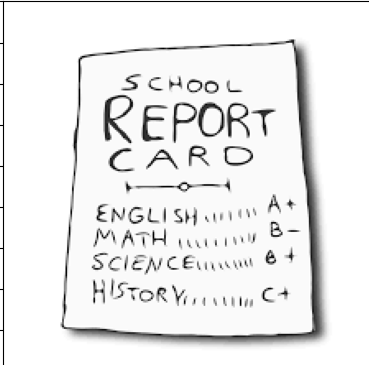
                "text": """Extract the grades from this image in a structured format. Only return the output.
                           ```
                           [{"subject": "<subject>", "grade": "<grade>"}]
                           ```"""
              },
              {
                "type": "image_url",
                "image_url": {
                  "url": f"data:image/jpeg;base64,{base64_image}"
                }
              }
            ]
          }
        ],
        "max_tokens": 500 # Return no more than 500 completion tokens
    }

    The return I get from the API is exactly how i wanted.

    ```json
    [
      {"subject": "English", "grade": "A+"},
      {"subject": "Math", "grade": "B-"},
      {"subject": "Science", "grade": "B+"},
      {"subject": "History", "grade": "C+"}
    ]
    ```

    This is just an example of how just by using the correct prompt we can built an information retrieval system on images using the vision API.

    In the next article, we will build a classifier using the API, which will involve no knowledge of Machine Learning and just by using the API we will build a state-of-the-art image classifier.

  • Temperature In Language Models – A way to control for Randomness

    Temperature In Language Models – A way to control for Randomness

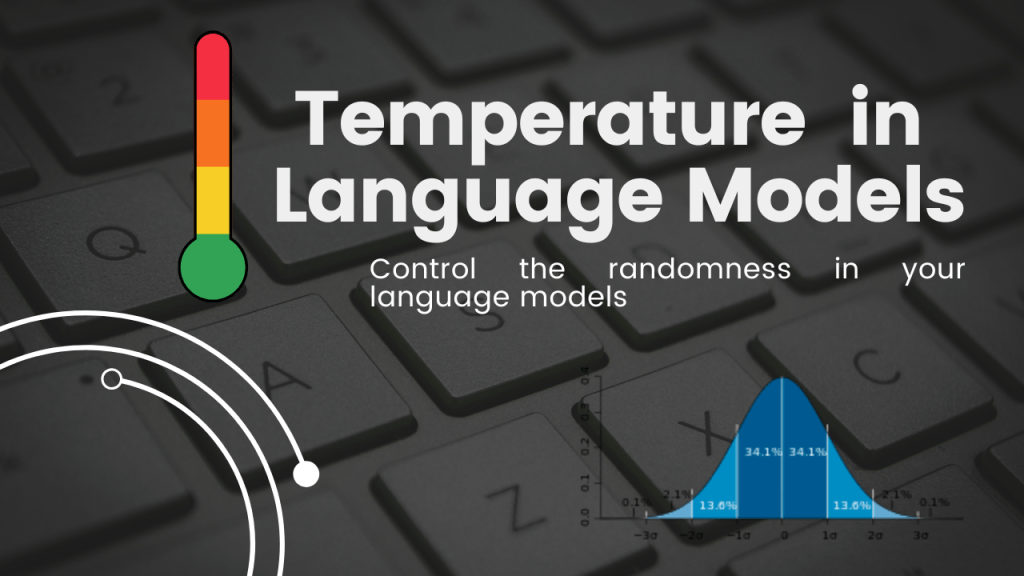
    Temperature is a parameter that you can access with open-source LLMs which essentially guide the model on how random their behaviour is.

    Here is an image from cohere.ai

    In this image, we can see that if you increase the temperature, the probability distribution of the softmax output of the next token is changed. So when you sample from this probability distribution, there is a chance that you can select the output token which has a very low probability score in the original distribution.

    Similarly, there is also something known as top k and top p.

    They also work similarly to temperature. The higher their value, the more random, your output will be.

    Let’s take an example. What do you expect the completion of this sentence to be – The cat sat on the _____

    I think most of us will think mat, followed by other things where you can sit like porch, floor, etc. and not sky.

    Suppose we feed this to a text-generation model and the softmax probability distribution looks like this –

    token prob
    mat 0.6
    floor 0.2
    porch 0.1
    car 0.05
    bus 0.03
    sky 0.02

    If you set temperature = 0, then the most likely completion of the sentence that the model will return will be The cat sat on the mat

    But when we set temperature = 1, or a number which is high, then we could get the model to give the output as The cat sat on the sky Cause then the probability distribution of the softmax output is skewed artificially to generate less likely tokens. This can be good or bad based on the context of the problem.

    In the video below, we ran through a couple of settings and saw the effect these parameters had on the output of Llama-2-7b.

    #loading the model 
    
    import torch
    from peft import PeftModel, PeftConfig
    from transformers import AutoModelForCausalLM, AutoTokenizer, BitsAndBytesConfig, pipeline
    
    bnb_config = BitsAndBytesConfig(load_in_4bit=True,
        bnb_4bit_quant_type="nf4",
        bnb_4bit_compute_dtype=torch.bfloat16,
        bnb_4bit_use_double_quant=False)
    
    model_id = "meta-llama/Llama-2-7b-chat-hf"
    
    tokenizer = AutoTokenizer.from_pretrained(model_id)
    model = AutoModelForCausalLM.from_pretrained(model_id, quantization_config = bnb_config,device_map={"":0})

    Then we create the prompt template and a function to create a text-generation pipeline –

    import json
    import textwrap
    
    B_INST, E_INST = "[INST]", "[/INST]"
    B_SYS, E_SYS = "<<SYS>>\n", "\n<</SYS>>\n\n"
    DEFAULT_SYSTEM_PROMPT = """
    """


    def get_prompt(instruction, new_system_prompt=DEFAULT_SYSTEM_PROMPT ):
        SYSTEM_PROMPT = B_SYS + new_system_prompt + E_SYS
        prompt_template =  B_INST + SYSTEM_PROMPT + instruction + E_INST
        return prompt_template
    
    def create_pipeline(temperature = 0, top_p = 0.1, top_k = 3, max_new_tokens=512):
        pipe = pipeline("text-generation",
                    model=model,
                    tokenizer = tokenizer,
                    max_new_tokens = max_new_tokens,
                    temperature = temperature,
                    do_sample = True, 
                    top_p = top_p,
                    top_k = top_k)
        return pipe

    Now let’s see the model output when we pass this prompt to the model with different configurations.

    [INST]<<SYS>>
    
    
    <</SYS>>
    
    Complete the sentence - The cat sat on the [/INST]
    # Model with all params as low.
    pipe = create_pipeline(0.1)
    output = pipe.predict(prompt)
    print(output[0]['generated_text'])
    
    >>> [INST]<<SYS>>
    
    
    <</SYS>>
    
    Complete the sentence - The cat sat on the [/INST]  The cat sat on the mat.

    As expected, the model’s output was in line with our expectations.

    # Model with all params as high.
    pipe = create_pipeline(0.8, top_p = 0.8, top_k = 100)
    output = pipe.predict(prompt)
    print(output[0]['generated_text'])
    
    >>> [INST]<<SYS>>
    
    
    <</SYS>>
    
    Complete the sentence - The cat sat on the [/INST]  The cat sat on the windowsill.

    Here, we saw that by changing the parameters, the model’s output was also influenced.

  • PDF ChatBot Demo with Gradio, Llama-2 and LangChain

    PDF ChatBot Demo with Gradio, Llama-2 and LangChain

    In this post, we will learn how you can create a chatbot which can read through your documents and answer any question. In addition, we will learn how to create a working demo using Gradio that you can share with your colleagues or friends.

    The google collab notebook can be found here.