Tag: Pandas

  • Fuzzy Match DataFrames Using RapidFuzz and Pandas

    Today, we will be going over how you can match two DataFrames using RapidFuzz and Pandas.

    Suppose that you’ve two DataFrames, one having the product_id and the other having the product_price, with the key being the name. Since, names can be written differently, you’ve to match them.

    nameproduct_id
    M.D. LuffyA
    R. ZoroB
    SanjiC
    NamiD
    NarutoE
    name and product_id table

    nameproduct_price
    Monkey D. Luffy100
    Roronoa Zoro10
    Sannnji500
    Nami Chain1000
    Jiraiya300
    name and product_price table

    Since we can see that the name is written differently in the tables, we can’t do a direct left join using name as the key. We will be using fuzzy join using rapidfuzz library.

    # Importing the libraries
    import pandas as pd
    from rapidfuzz import fuzz
    from rapidfuzz.process import cdist, extract
    

    We will be using the extract process to find the closest matching key from the second table to use as merge in the first table.

    df1 = pd.DataFrame({"name": ["M.D. Luffy",
    "R. Zoro",
    "Sanji",
    "Nami", 
    "Naruto"],
    "product_id":["A", "B", "C", "D", "E"]})
    
    df2 = pd.DataFrame({"name": ["Monkey D. Luffy",
    "Roronoa Zoro",
    "Sannnji",
    "Nami Chan", 
                                "Jiraiya"],
    "product_price":[100,10,500,1000,300]})
    
    df1['join_key_tuple'] = df1['name'].apply(lambda x: extract(query = x, choices =df2['name'], score_cutoff=80))

    Here the query is the string you want to match, choices are all the choices to match against. You can pass a custom scorer as well, but here we are using the defualt scorer, and lastly we’re passing a cutoff which we will use to determine a successful match.

             name	    product_id	           join_key_tuple
    0	M.D. Luffy	A	        [(Monkey D. Luffy, 85.5, 0)]
    1	R. Zoro	        B	        [(Roronoa Zoro, 85.5, 1)]
    2	Sanji	        C	        [(Sannnji, 83.33333333333334, 2)]
    3	Nami	        D	        [(Nami Chan, 90.0, 3)]
    4	Naruto	        E	        []

    We can now extract the key to join from the returned tuple and make the join to have the price of the product against the product_id.

    df1["join_key"] = df1["join_key_tuple"].apply(lambda x: x[0][0] if x else np.nan)
    
    df1.merge(df2, how = "left", left_on = "join_key", right_on ="name")

    This way you can do fuzz join on two pandas dataframe.

  • Pandas Essentials – Apply

    I often find people who are just starting out using pandas struggling to grasp when they should be using axis=0 and axis=1. While I go into a lot more detail with examples in the Youtube video above, you should keep this in mind.

    When you use axis=0, pandas only looks at the value being passed, but when you use axis=1, by default it assumes a pandas Series being passed, so it looks for the index. So when you write a function which references multiple columns and use apply, use axis=1 and remember that it considers each row as a pandas Series, with the column names in the index.

  • Pandas Essentials – Transform and Qcut

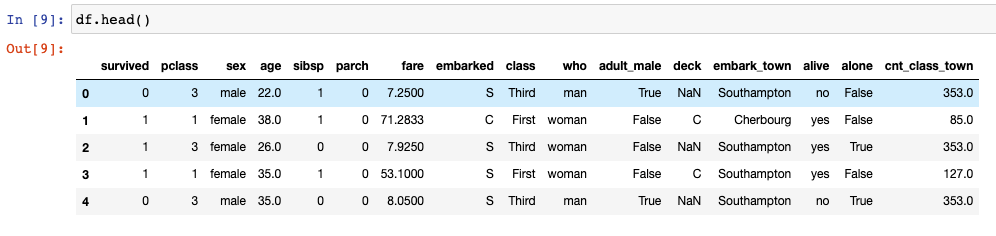
    Suppose you want to calculate aggregated count features and add them to your data frame as a feature. What you would typically do is, create a grouped data frame and then do a join. What if you can do all that in just one single line of code. Here you can use the transform functionality in pandas.

    import numpy as np
    import pandas as pd
    import seaborn as sns
    df = sns.load_dataset('titanic')
    df.head()
    

    Using df['cnt_class_town'] = df.groupby(['class', 'embark_town']).transform('size') we can directly get our desired feature in the data frame.

    Again, if you want to create any sort of binned features based on the quantiles, usually first you would create a function and then use pandas apply to add that bucket to your data. Here again, you can directly use qcut functionality from pandas, pandas.qcut(x, q, labels=None, retbins=False, precision=3, duplicates='raise') to create the buckets in just one line of code.

    Let’s take an example where we want to bin the age column into 4 categories, we can do so by running this one line of code –

    df['age_bucket'] = pd.qcut(df['age'], q = [0,0.25,0.5,0.75, 1], labels = ["A", "B", "C", "D"])

    Do note that the labels have to be 1 less than your quantiles (q). The explanation as to why I have explained in the Youtube video (see above).

    Hopefully, this clears up some pandas concepts and lets you write faster and neater code.

  • Pandas Essentials – Pivot, Pivot Table, Cast and Melt

    How to transform your data to generate insights is one of the most essential skills a Data Scientist can have. Knowing state-of-the-art models will be of no use if you cannot transform your data with ease. Pandas is a data manipulation library in python that everyone knows. It is so ubiquitous that all of us starting off in Data Science start our notebooks with import pandas as pd.

    In this post, we will go over some pandas skills that many people either don’t know, don’t use or find difficult to understand.

    As usual, you can either read the post or watch the Youtube video below.

    We will be using the flights data from seaborn as an example to go over.

    import pandas as pd
    import numpy as np
    import seaborn as sns
    flights = sns.load_dataset('flights')
    flights.head()
    

    Pivot and Pivot Table

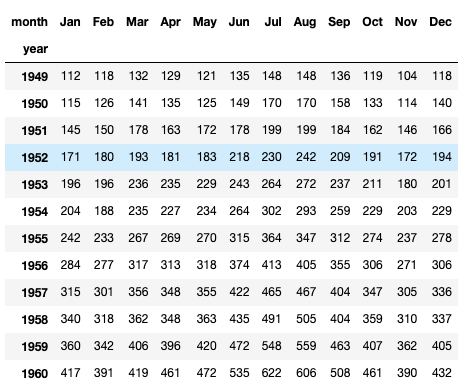
    Now suppose that you want to create a table which had year as rows and month as columns and the passengers as values, then you will use pivot. Here is the pivot function from the official documentation of pandas – DataFrame.pivot(*index=Nonecolumns=Nonevalues=None)

    In this particular example, you’ll use year as index, month as columns and passengers in values.

    flights.pivot(index='year', columns='month', values='passengers')

    Now the most important question is why there is pivot and a pivot_table in pandas. The reason is that pivot only reshapes the data, it does not support data aggregation, for data aggregation you will have to use pivot_table.

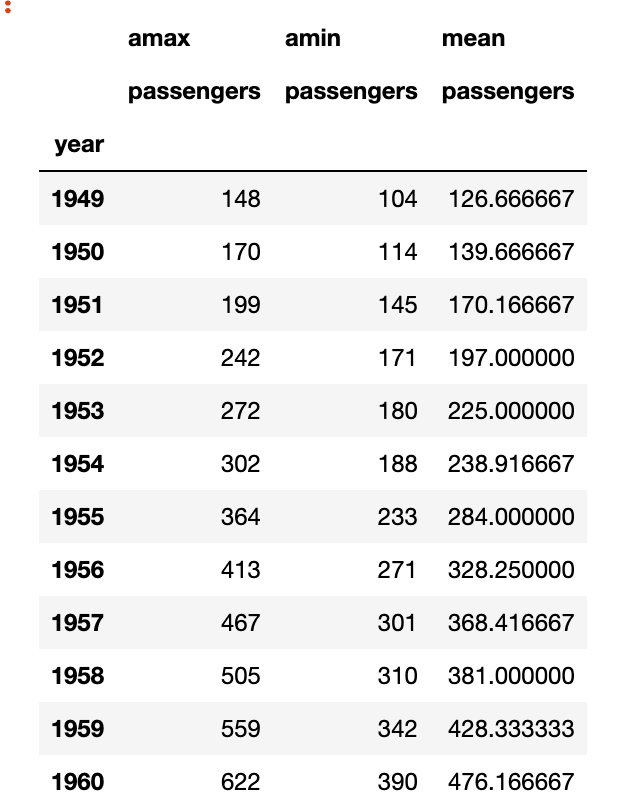
    Now suppose I wanted to create a table which will show me for every year, what was the maximum, minimum and mean number of passengers, then there are two ways I can do it, I can either use groupby or I can use pivot_table. Here is the official documentation from pandas for pivot_table. Note: You can pass multiple aggregation functions.

    DataFrame.pivot_table(values=Noneindex=Nonecolumns=Noneaggfunc='mean'fill_value=Nonemargins=Falsedropna=Truemargins_name='All'observed=Falsesort=True)

    flights.pivot_table(values = 'passengers', index = 'year', aggfunc=[np.max, np.min, np.mean])

    Melt

    Melt is used to convert wide-form data into long-form, suppose we started with the flights data in its pivot form, that is –

    flights_wide = flights.pivot(index='year', columns='month', values='passengers')

    And we wanted to return to the flights data form, then melt can be thought of as the unpivot of pandas. To return to the original form you simply have to –

    flights_wide.melt(value_name='passengers', ignore_index=False)

    Here we don’t use an id_var as there is None, we add ignore_index as False as we want to return the index which has the year in it and we call the value_name as passengers.

    As a recap, remember that pivot makes long-form data into wide-form and melt takes wide-form data and converts it into long-form data

    So where is Cast in Pandas?

    People who have used R as a programming language often ask where is the cast functionality in pandas, the pivot_table we saw earlier is pandas’s answer to the cast functionality in Python.